
1. Name your group.
Open Groups and tap + at the top right, or Create group if your list is empty. Enter a name your players will recognise, such as Office Table Tennis or Office Foosball.
Your group name can contain up to 40 characters and can be changed later.
2. Choose an activity.
For a supported sport or game
Choose Official in the app, then select your activity. Elo-X supplies its supported variants and base rules.
In this example, choose Table Tennis. The app shows Singles and its preset competition format.
Need another game or your own rules? Choose Custom and follow the next step.
After creation, you cannot change the selected standard activity or switch between standard and custom.
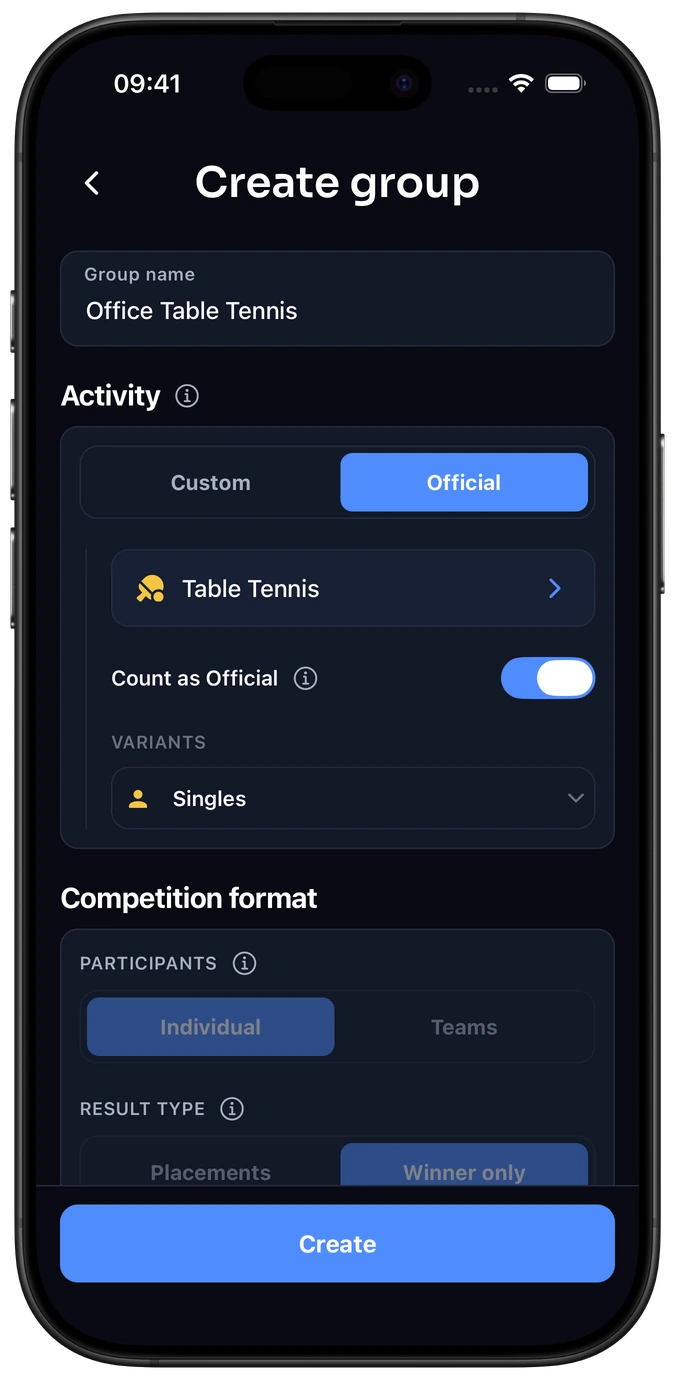
Can a standard group use different variants?The selector previews each variant’s settings.
Yes. The Variants selector lets you inspect the format and available restrictions for each supported variant. It does not limit the whole group to the variant currently displayed. A Chess group, for example, can use the activity’s supported chess formats.
See the supported activities. If yours is missing, use Custom or request a standard activity through Suggest & Vote.
Should group matches count globally?Count as Official · standard activities only.
Count as Official is on by default for a new standard group. Eligible confirmed results then also appear in the activity’s global history and affect global Elo-X ratings. Your group keeps its own leaderboard either way.
The setting is saved with each new match. Changing it later does not change existing matches. Group details and private notes stay private. Custom activities keep results and ratings within their group and have no global-rating switch.
3. Set your custom format.
Custom activities only. Standard activities already have a preset format.
Example: Office Foosball
Choose Custom and enter Foosball as the activity name. This is separate from the group name, Office Foosball.
For two pairs playing each other, choose:
- Participants
- Teams
- Result type
- Winner only
- Allow draws
- Off, if every match has a winner
The activity name can contain up to 30 characters. Use Activity icon to choose an optional icon from the recommendations or search. The icon does not change the format.
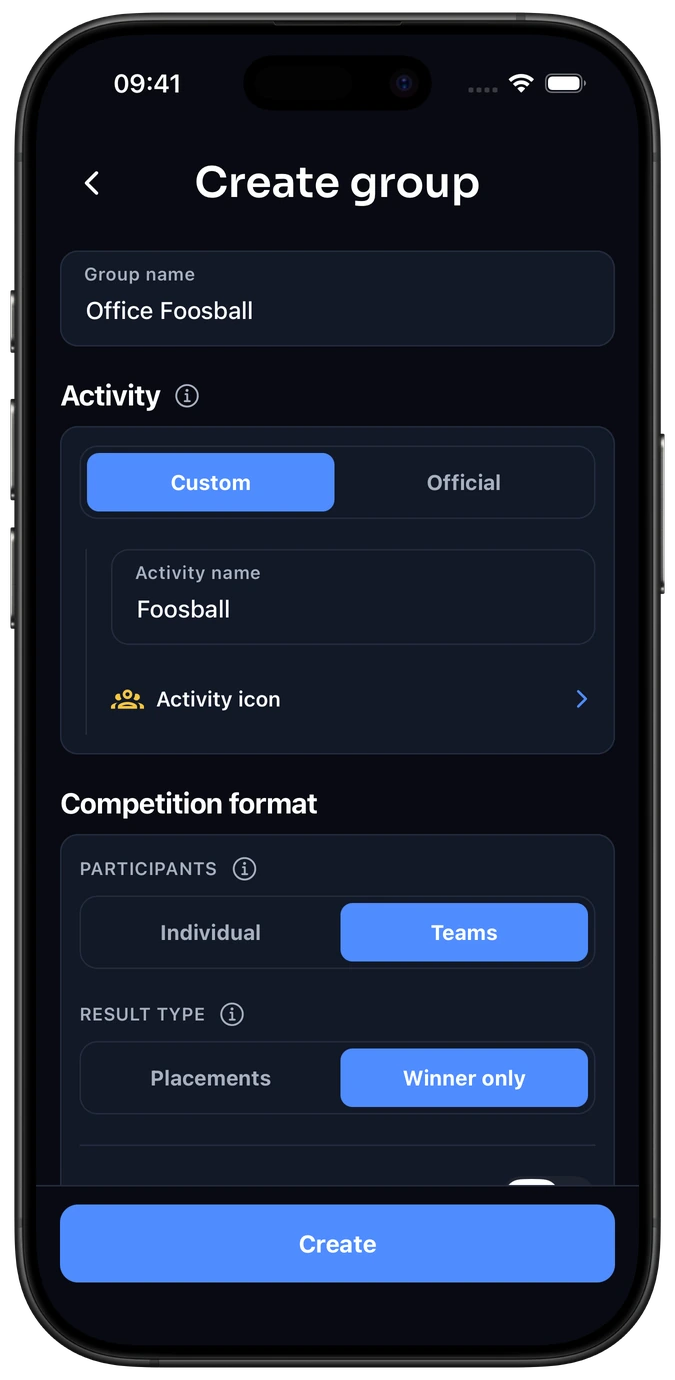
Which competition format should I choose?Individual or Teams · Winner only or Placements.
Choose one option from each pair. Individual and Teams can both use Winner only or Placements.
Participants
Individual
Each player competes separately, with their own outcome and score.
Teams
Players compete together, with one outcome and score for each team.
Result type
Winner only
Record the winning player or team.
Placements
Record everyone’s finishing position, including second, third and later places.
Draws and ties: enable Allow draws for Winner only or Allow tied placements for shared finishing positions. Best-of matches and Win by two use a decisive winner; available controls depend on your settings.
Four example setups
CATAN
Individual · Winner only
Record the winner of your game.
Carcassonne
Individual · Placements
Keep everyone’s finishing position.
Foosball
Teams · Winner only
Two pairs, one winning side.
Team quiz
Teams · Placements
Rank three teams from first to last.
These are custom setups you choose for your group. Use the combination that fits your rules.
An existing custom variant’s Participants and Result type are fixed. Add a separate variant if you need another combination; each variant keeps its own ratings and history.
4. Review advanced settings.
Optional. Follow the example below, or keep the defaults for a simpler group.
4.1 Open Advanced settings.
Open Advanced settings below Competition format.
Add optional House rules if your group needs an agreement about what counts as one match or how to settle a disputed result.
Set participant limits first, then add scores in step 4.3.
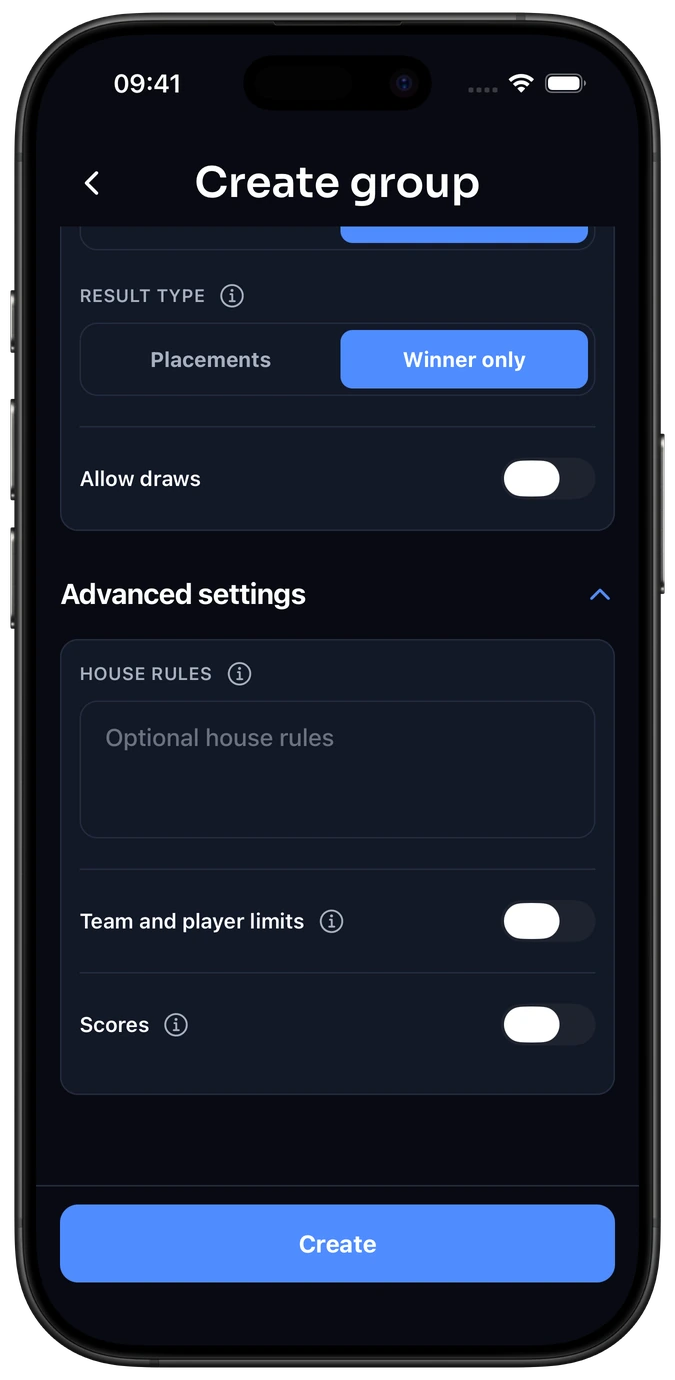
House rulesWrite down the agreements your group follows.
Use the optional field, up to 1,200 characters, for what counts as one match or how you settle a disputed result. House rules are shared guidance: writing a rule here does not configure it. Participant and scoring settings are enforced separately.
4.2 Set player or team limits.
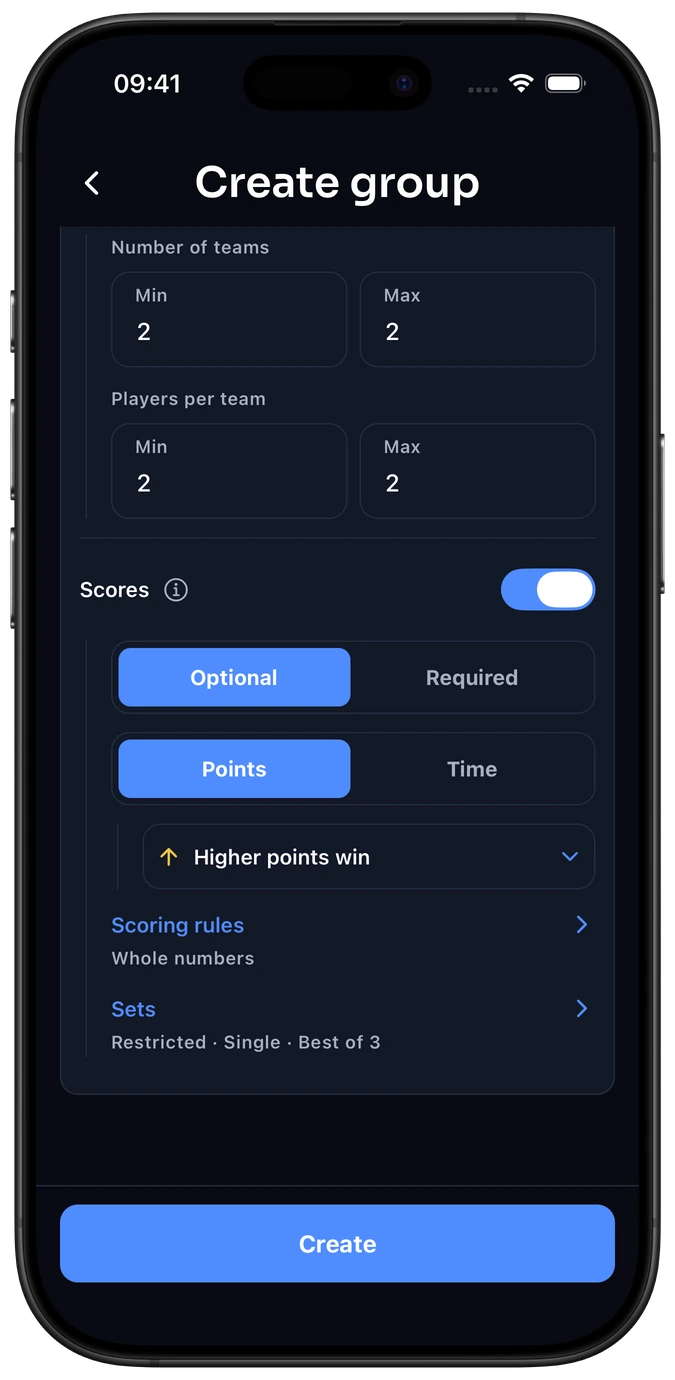
For our 2v2 Foosball example, enable Team and player limits and use:
- Number of teams
- Min 2 · Max 2
- Players per team
- Min 2 · Max 2
This allows two teams of two players in each match. Your group can still have more members.
Scores are off in this screen. We’ll turn them on in the next step.
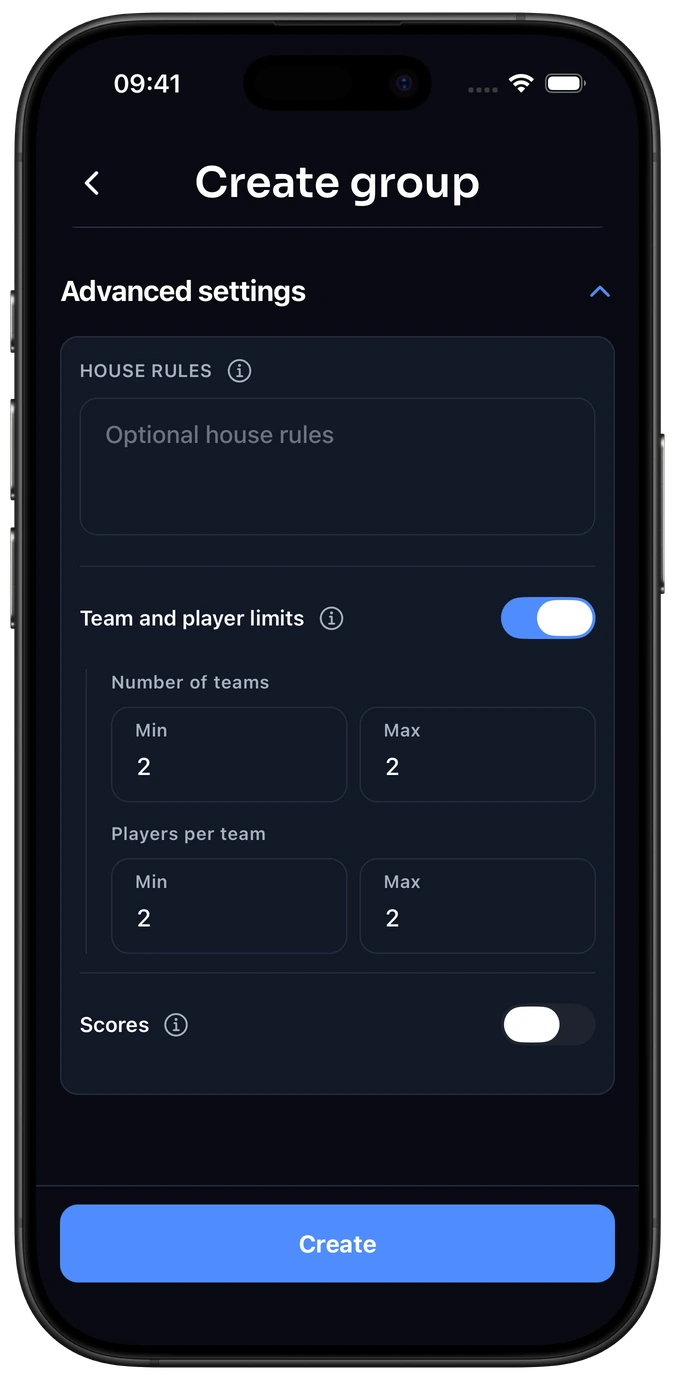
Player or team limitsSet the number of participants in one match.
Enable Player limits for Individual or Team and player limits for Teams.
- Number of players
- For Individual: minimum and maximum players in one match.
- Number of teams
- For Teams: minimum and maximum competing teams.
- Players per team
- Permitted team size. Teams in one match must have the same number of players, even when the group allows a range.
- Min and Max
- Use equal values for a fixed count. Leave Max blank for flexibility within Elo-X’s limits: 2–16 players or teams, and 1–16 players per team.
These limits apply to a match, not the group’s membership. Your group can have more members than play in one match.
4.3 Choose how to record scores.
Turn Scores on if you want to record points or times alongside the outcome. Leave it off if the winner or finishing order is enough.
For this Foosball example, choose:
- Scores
- Optional
- Units
- Points
- Winning score
- Higher points win
- Sets
- Single and Best of 3
Optional lets players record the outcome without entering a score. Use the settings that fit your rules.
ScoresOptional or Required · Points or Time.
Leave Scores off if the winner or finishing order is enough. Turn it on to record a score for each player or team.
- Optional
- Players can omit the score while still recording the outcome.
- Required
- A result needs the applicable scores before it can be submitted.
- Points
- Choose Higher points win or Lower points win.
- Time
- Choose Faster time wins or Longer time wins. The time fields contain Hrs, Min, Sec and ms.
Record the actual winner or placements too. Elo-X warns if single-result scores disagree with that outcome; you can add context in the note. Best-of set scores must agree with the match winner.
Scoring rulesWhole numbers, decimals, score limits and Win by two.
Open Scoring rules beneath the score options, then choose Done to apply the sheet’s changes to your draft.
- Whole numbers only
- For Points: keep it on for integer scores, or turn it off for decimals.
- Scoring range
- Set optional Min and Max values. Leave unneeded bounds blank; Min cannot exceed Max.
- Win by two
- Available for Winner only with higher points winning. It uses whole-number points and two opponents. With Max 11, 11–3 and 13–11 are valid finishes; 12–11 is not. Max is the normal target, with play continuing for the required lead.
- Time limits
- Set optional minimum and maximum durations. Minutes and seconds use 0–59; milliseconds use 0–999.
Sets: Single or Best ofChoose which match lengths your players can use.
With scores enabled and Winner only, open Sets.
- Restricted
- Select at least one allowed length, such as Single and Best of 3.
- All
- Allow the available lengths: Single and odd best-of lengths from 3 through 35.
A best-of match has two players or two teams. Best of 3 is first to two set wins; Best of 5 is first to three. If optional scores are provided, enter every played set for both opponents, with no extra sets after the match was won. Placements uses a single result.
Turning Scores off returns the format to Single and turns off Win by two. Allowed match lengths do not create separate ratings; use separate custom variants if you want independent rating buckets.
Standard activity restrictionsWhat you can adjust within the activity’s preset rules.
Fixed participant counts, score units, winning direction and number format stay read-only. Where the preset allows it, your group can narrow a range, require previously optional scores or restrict allowed match lengths.
Restrictions apply to the selected variant. Switch variants to review them separately. You cannot loosen the preset or enable scores if it has them off. Choose Custom if you need different base rules.
5. Create and invite players.
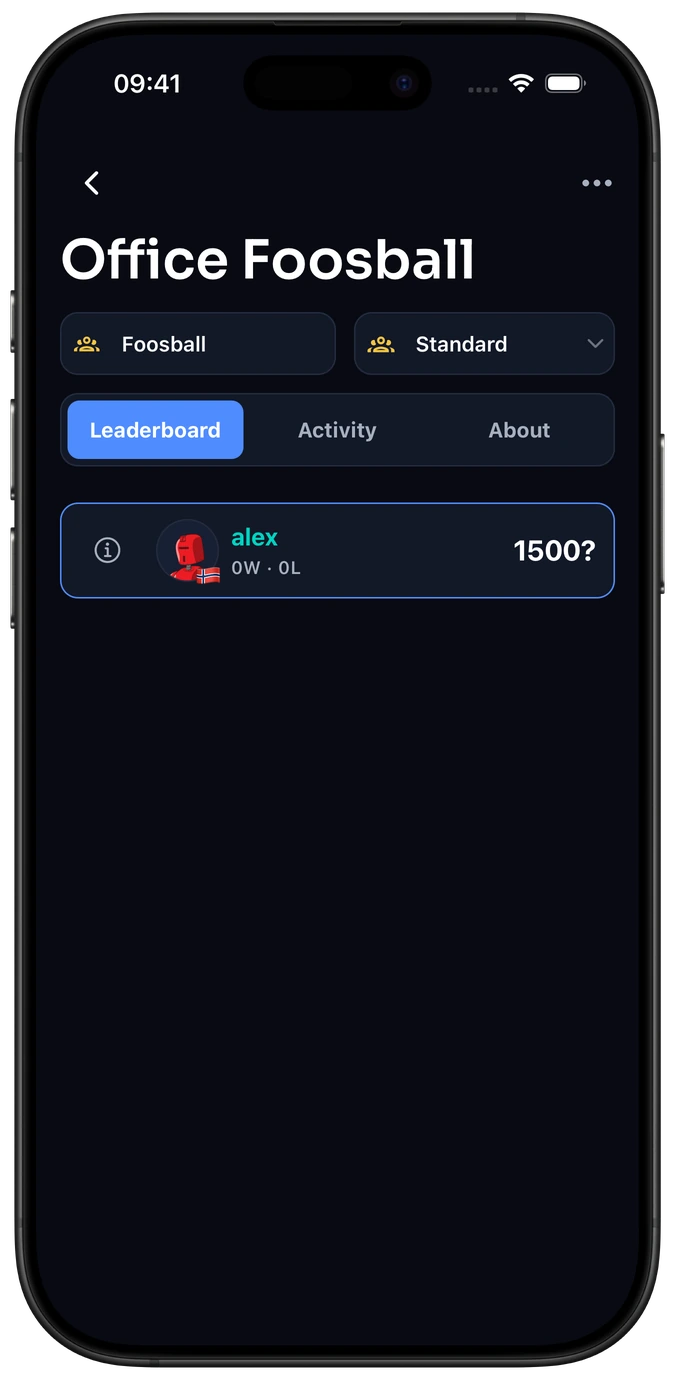
- Tap Create. Check the group name, activity and settings first.
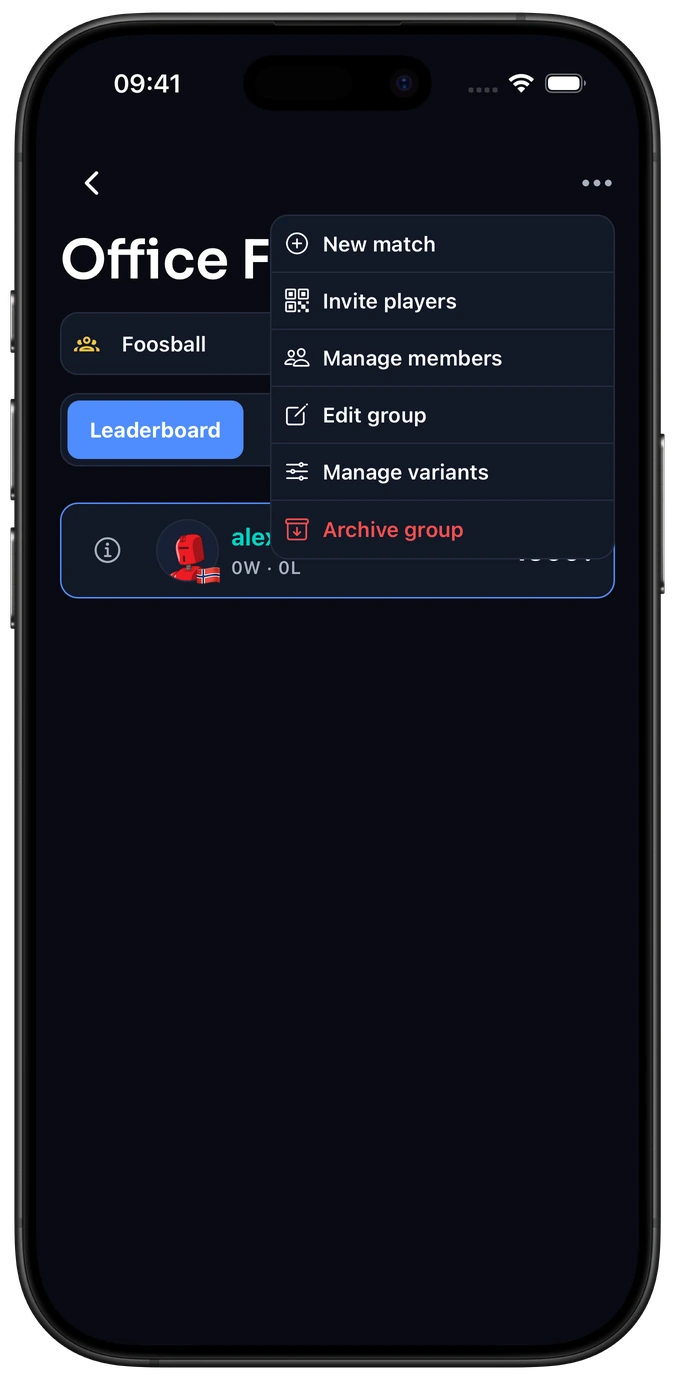
- Invite your players. Open the group’s options menu, choose Invite players, then use Copy group link or let them scan the QR code.
Each player needs their own Elo-X account and must meet Elo-X’s age requirements.
Why is the custom variant called Standard?
A custom group starts with a variant labelled Standard. It is your custom format, not a standard Elo-X activity. Use Manage variants in the group menu to rename it or add other formats.
Why is Create unavailable?
Check the required names, valid Min/Max ranges, score limits and at least one allowed length under Restricted Sets. A standard activity also needs its catalog rules to load. Validation messages appear beside the relevant fields.